

How to Use Anime Adventures Mode
It’s important to change the Roblox font before starting this mode.
How to Change the Font:
- Open Roblox.
- Click the “Change Roblox Font” button.
- Close Roblox completely.
- Reopen Roblox for the changes to take effect.

Step 1: Adjust Unit Positions


Before starting, you need to set the positions where you want to place your units inside the map.
- Join the map normally without moving the camera—this is important for accuracy.
- Once inside, press the “Respawn and move to starting position” button to reset your position.
- Start adding your units using the “+” (Add new unit) button.
- Adjust the unit’s location by dragging and moving the number that appears on the screen.

Understanding Unit Positions Table
- X & Y: Coordinates where the unit will be placed.
- Slot: Determines which unit you want to summon first.
- Wave: Specifies the wave number in which the unit should be summoned.
Example Setup:
If you want Unit 3 to be placed on Wave 1, the table will look like this:1 | X & Y | Slot: 3 | Wave: 1
If you want to wait until Wave 4 to place Unit 3:1 | X & Y | Slot: 3 | Wave: 4

Step 2: Managing Units
- “+” (Add new unit): Adds a unit at a specific location.
- “🗑 (Delete the selected unit):” Removes the selected unit from the list.
- “Slot <“: Determines which unit from your available units will be placed in the selected position.
- Unit Properties:
- Slot number: Select which unit you want for a specific location.
- Wave spawn: Choose which wave the unit should be summoned.
Step 3: Set Auto-Exit at a Specific Wave
- Locate the “Exit to lobby at wave number” option.
- Set it to the wave you prefer.
- Example: If you set it to Wave 9, the system will detect when you reach Wave 9, exit the match, and automatically rejoin for continuous grinding.
Step 4: Save Your Settings
- Click “Save unit positions” to store unit placements.
- Click “Save options” to store all other settings.
- Recommended: Restart the mode by pressing F3, then start it again for the settings to apply properly.
By following these steps, you can fully automate your gameplay in Anime Adventures Mode and farm gems efficiently. 🎮🔥
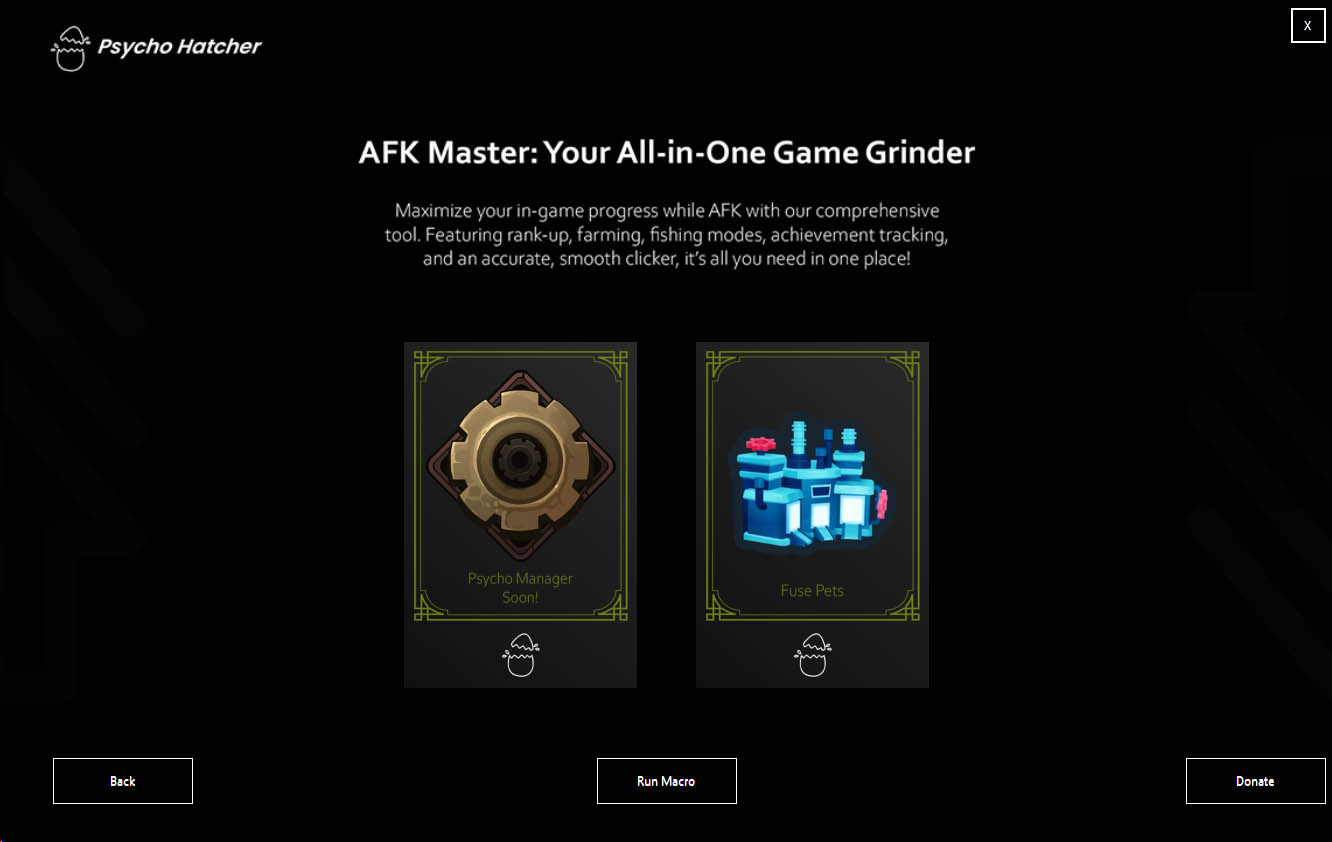
New Update: We have Dropped Our Newest Mode – FUSE PETS Mode! V1.0.19
Update 1.0.19 Tree House Mode Is Now Available! Check On Youtube We have Dropped Our…
🎉 OUR BIG UPDATE IS FINALLY HERE! 🎉
Update 1.0.16 Tree House Mode Is Now Available! Check On Youtube OUR BIG UPDATE IS…
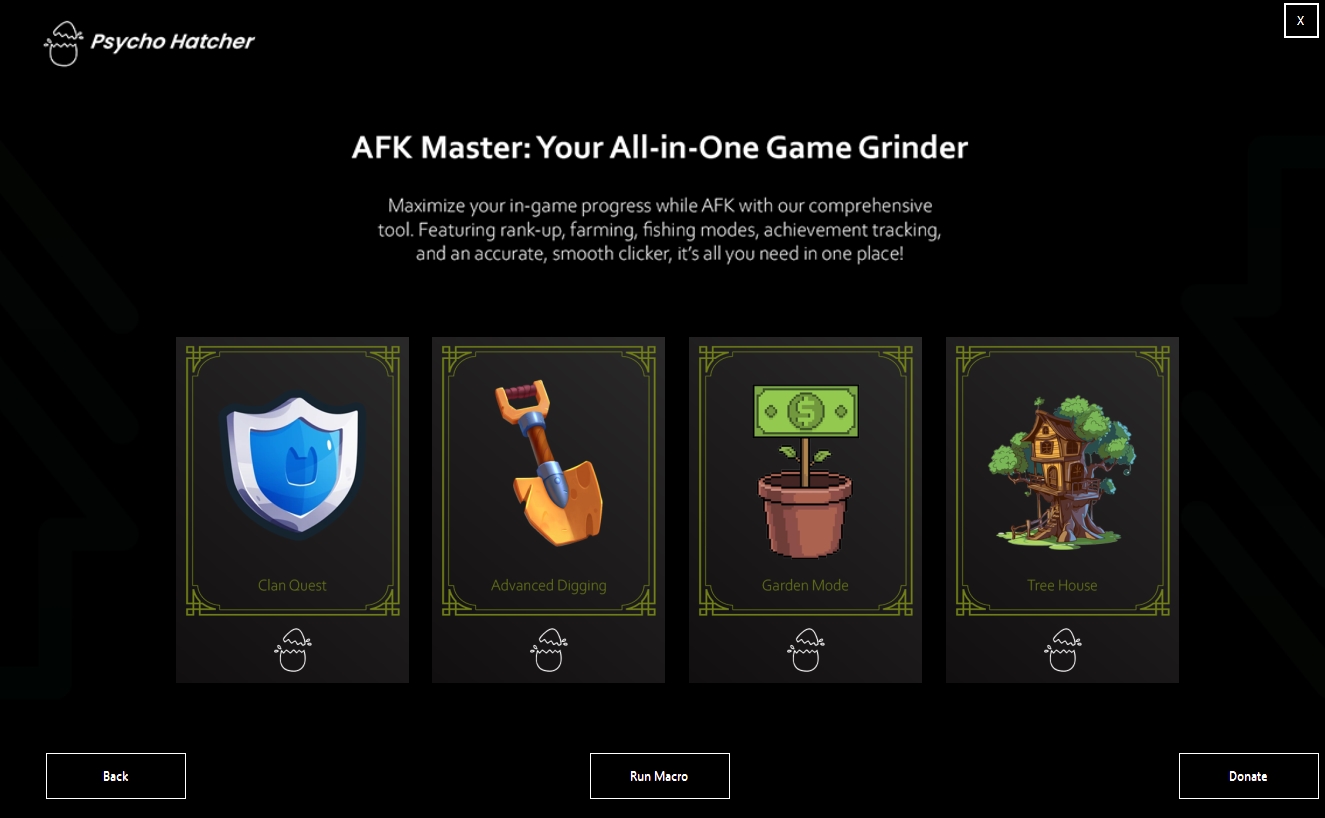
🌳 Tree House Mode Is Now Available! 🌳
We are excited to introduce our newest mode, Tree House, which has finally come out!…